🔐 Faction Permissions
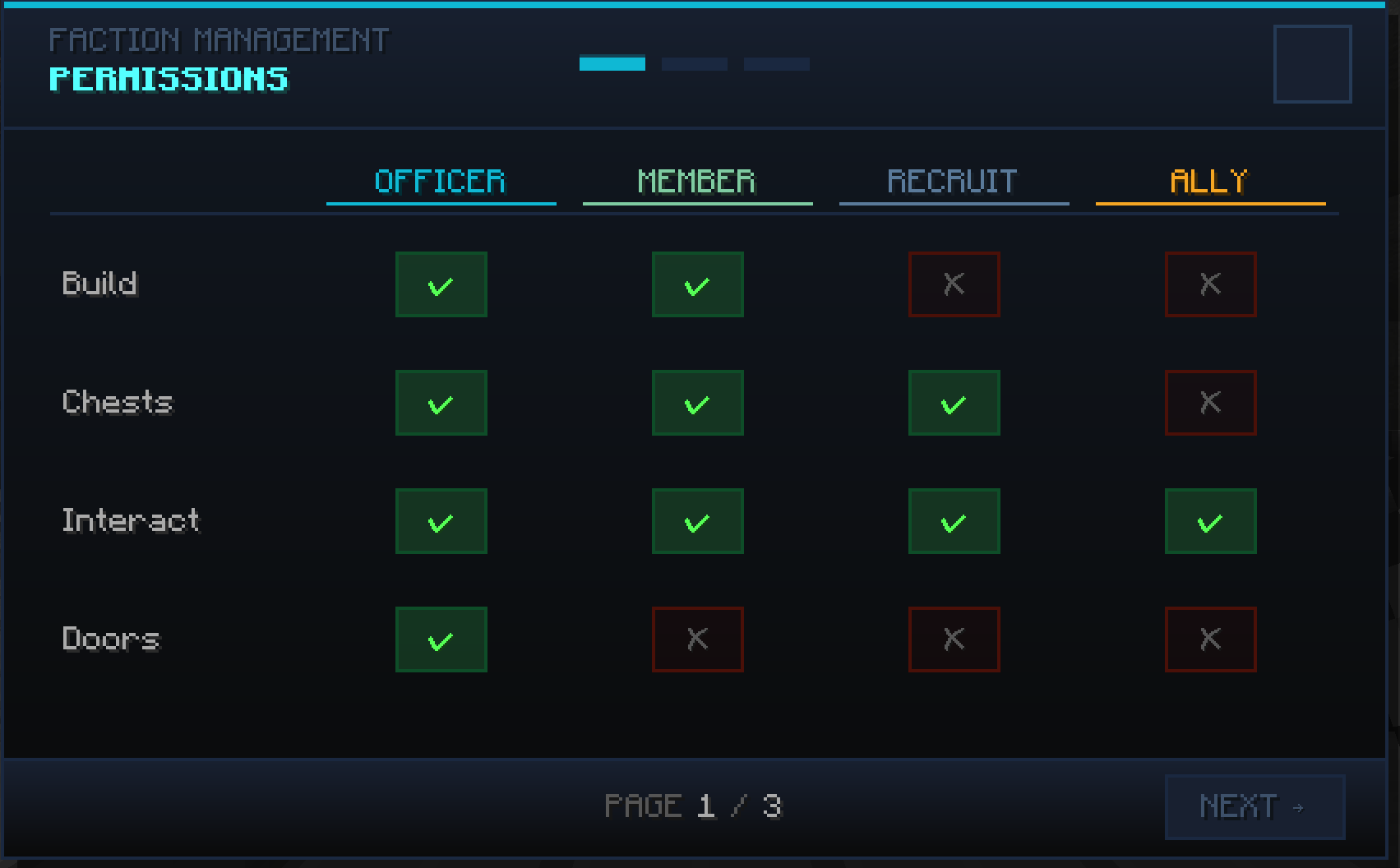
Every faction decides who is allowed to do what. The Leader sets this rank by rank from the PERMISSIONS button in the menu (/f menu).
👑 The Leader always has every permission — they don't show up in the grid.
👥 The 5 adjustable groups
Permissions are set for 5 different groups:
| Group | Who it is |
|---|---|
| ⭐ Officer | Your officers |
| 🔸 Member | Your members |
| 🔹 Recruit | Your new recruits |
| 🤝 Ally | Members of your allied factions |
| ⚪ Neutral | Everyone else (non-members, non-allies) |
💡 Setting the Neutral permissions to OFF is what protects your base from outsiders (they can't break blocks, open your chests, etc.).
📋 The 14 permissions
| Permission | What it allows |
|---|---|
| 🏗️ Build | Place and break blocks on the territory |
| 📦 Containers | Open chests and containers |
| 🕹️ Interact | Use levers, buttons, machines |
| 🚪 Doors | Open doors and trapdoors |
| 🧰 Faction Chest | Open the shared chest (/f chest) |
| 🛒 Faction Shop | Use the shop (/f shop) |
| ✉️ Invite | Invite new players |
| 👢 Kick | Kick members out |
| 🎖️ Ranks | Promote / demote |
| 🗺️ Claim | Claim, abandon and force-load territory |
| 🏠 Home | Set the faction home (/f sethome) |
| ✏️ Rename | Change the name and description |
| 🤝 Diplomacy | Create and break alliances |
| ☢️ Nukes | Use the faction's nuclear weapons (perk unlocked at level 20 — see Factions) |
⚙️ Changing permissions
- Open
/f menu. - Click on PERMISSIONS (Leader only).
- For each permission, click a group's cell to toggle it ON/OFF.
- It's saved instantly.
➡️ See also: Factions · Territory & Claim